Workforce Canvas
The visual org chart editor for designing and managing your AI workforce structure.
Overview
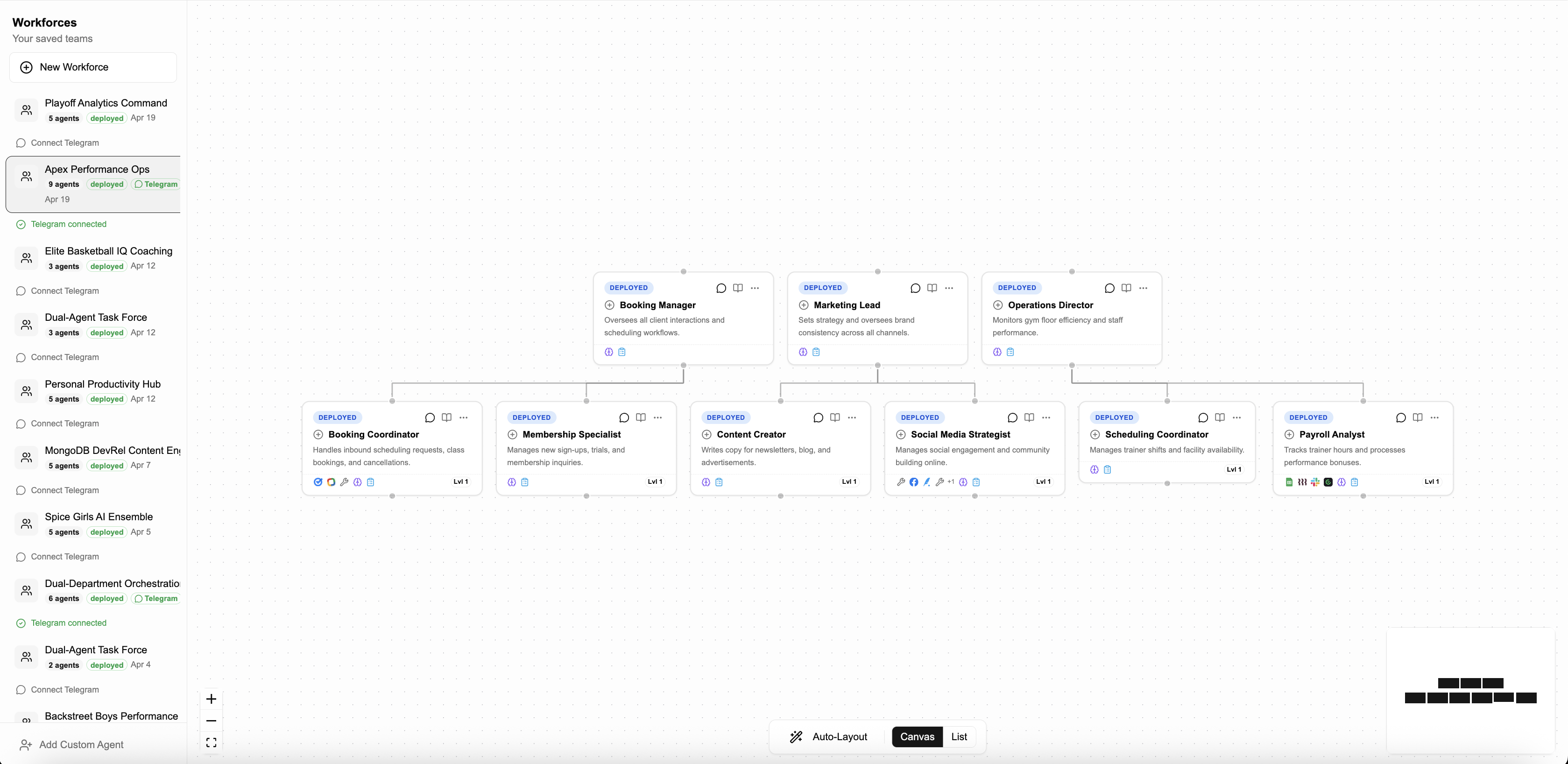
The workforce canvas is a React Flow-powered visual editor that displays your team as an interactive org chart. Members appear as nodes connected by edges representing reporting lines.
Node Types
Each member appears as a card-style node with key information visible at a glance:
Oversees sales pipeline and coaches SDRs on best practices.
Node Elements
- Status badge - Deployment state (DEPLOYED, DRAFT)
- Role badge - Color-coded by member type
- Name - Display name (double-click to rename)
- Responsibility - Short job description
- Tool icons - Configured integrations
- Level indicator - Hierarchy position
Node Actions
- Click - Open configuration panel
- Double-click name - Inline rename
- Drag - Reposition on canvas
- Hover handles - Show connection points
- Right-click - Context menu (delete, duplicate)
Interactions
Select a member to open the configuration panel with full editing options.
Move members around the canvas to arrange your org chart layout.
Drag from connection handles to create reporting lines between members.
Select a member and press Delete to remove them from the workforce.
Canvas Controls
Zoom & Navigation
- Scroll wheel - Zoom in/out
- Click + drag (background) - Pan the canvas
- Fit view button - Auto-fit all nodes in view
- Zoom controls (+/-) - Manual zoom adjustment
View Options
- Minimap - Overview of the full canvas (bottom right)
- Auto-Layout - Automatically arrange nodes
- Canvas/List toggle - Switch between visual and list views
- Full screen - Expand canvas to full viewport
View Toggle
Located at the bottom center of the canvas. List view shows members in a table format for quick scanning.
Keyboard Shortcuts
| Shortcut | Action |
|---|---|
| Delete / Backspace | Remove selected member |
| Cmd/Ctrl + S | Save workforce |
| Cmd/Ctrl + Z | Undo last action |
| Escape | Deselect / close panel |
| Space + drag | Pan canvas |
Creating Connections
- Hover over a node - Connection handles appear on the edges
- Click and drag from a handle - A line follows your cursor
- Drop on another node's handle - Creates a reporting line
- Direction matters - Drag from parent to child for proper delegation flow
Manual Editing Workflow
After the AI generates your initial workforce, all further modifications are done manually on the canvas. The AI Designer Bar only creates new workforces from scratch.
How to Edit Your Workforce
- Add new members - Click "Add Custom Role" button to create new nodes
- Rearrange structure - Drag nodes to reposition them on the canvas
- Create reporting lines - Drag from connection handles to link members
- Remove connections - Click an edge and press Delete to remove it
- Configure members - Click a node to open the configuration panel
- Apply Changes - Click the "Apply Changes" button to save your modifications
Editing Deployed Agents
To edit a deployed agent:
- Navigate to the agent in your Agent5ive dashboard
- Open the agent's configuration page
- Make your changes (system prompt, tools, knowledge, etc.)
- Save and redeploy the agent